> ## Documentation Index
> Fetch the complete documentation index at: https://docs.yumiproxy.com/llms.txt
> Use this file to discover all available pages before exploring further.
# Android
**Before integrating a proxy into your Android device, ensure that the proxy service has been correctly configured and is functioning properly.**
The specific steps are as follows:
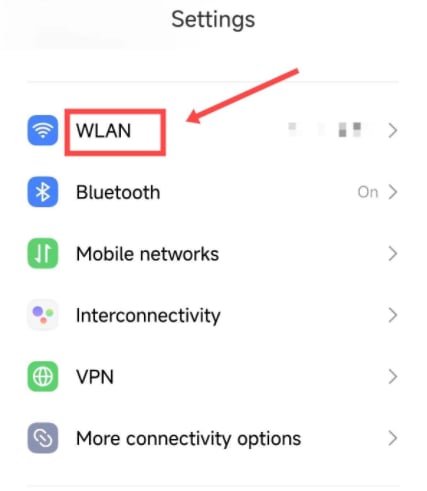
1. Open the device **Settings** app and tap **WLAN** or **Wi-Fi** to access the wireless network list.
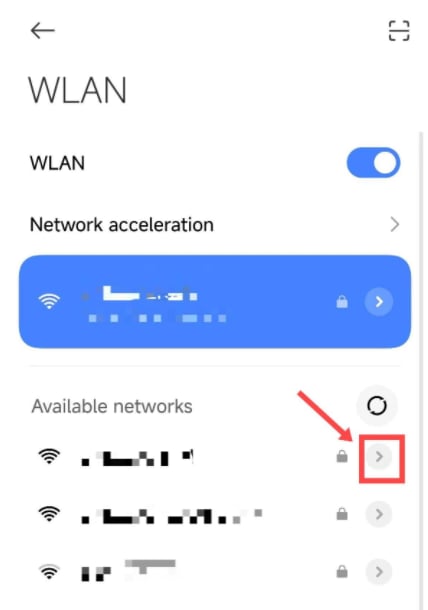
 2. Locate the Wi-Fi network you are currently connected to, and tap the configuration icon (typically a gear or arrow) on its right side to enter the network details page.
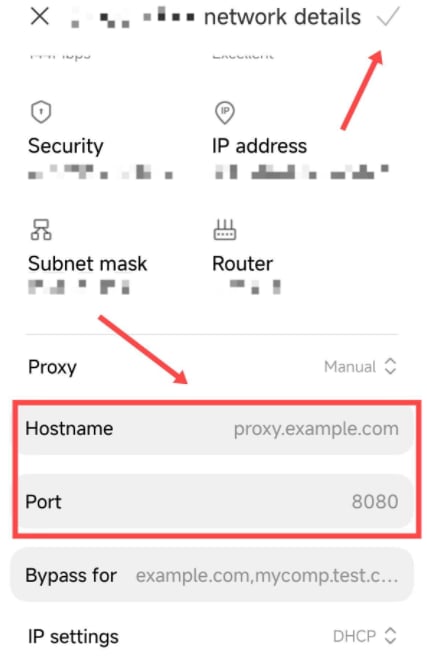
 3. On the network details page, change the proxy setting from **None** or **Auto** to **Manual** (or **Static**). Then, enter the hostname (proxy server address) and port number as provided by your proxy service provider. Once completed, tap the **Save** icon in the upper-right corner to apply the changes.
 4. Open your device's browser and navigate to any webpage. An authentication dialog will appear — enter the username and password provided by your proxy service provider.
5. After authentication, access an IP detection website through your browser. If the displayed current IP address matches the configured proxy IP, the proxy setup is successful.
By following the above steps, you will successfully complete the integration of your Android device with the proxy, providing a more secure and flexible option for your network connection.
**If you have any questions or suggestions while using our service, please don’t hesitate to reach out. We’d love to hear your feedback and are always happy to help.**
4. Open your device's browser and navigate to any webpage. An authentication dialog will appear — enter the username and password provided by your proxy service provider.
5. After authentication, access an IP detection website through your browser. If the displayed current IP address matches the configured proxy IP, the proxy setup is successful.
By following the above steps, you will successfully complete the integration of your Android device with the proxy, providing a more secure and flexible option for your network connection.
**If you have any questions or suggestions while using our service, please don’t hesitate to reach out. We’d love to hear your feedback and are always happy to help.**