> ## Documentation Index
> Fetch the complete documentation index at: https://docs.yumiproxy.com/llms.txt
> Use this file to discover all available pages before exploring further.
# RoxyBrowser
**To configure YumiProxy in RoxyBrowser, simply follow these steps:**
1. First, download and install RoxyBrowser on your device.
2. Open it and register or log in to your account.
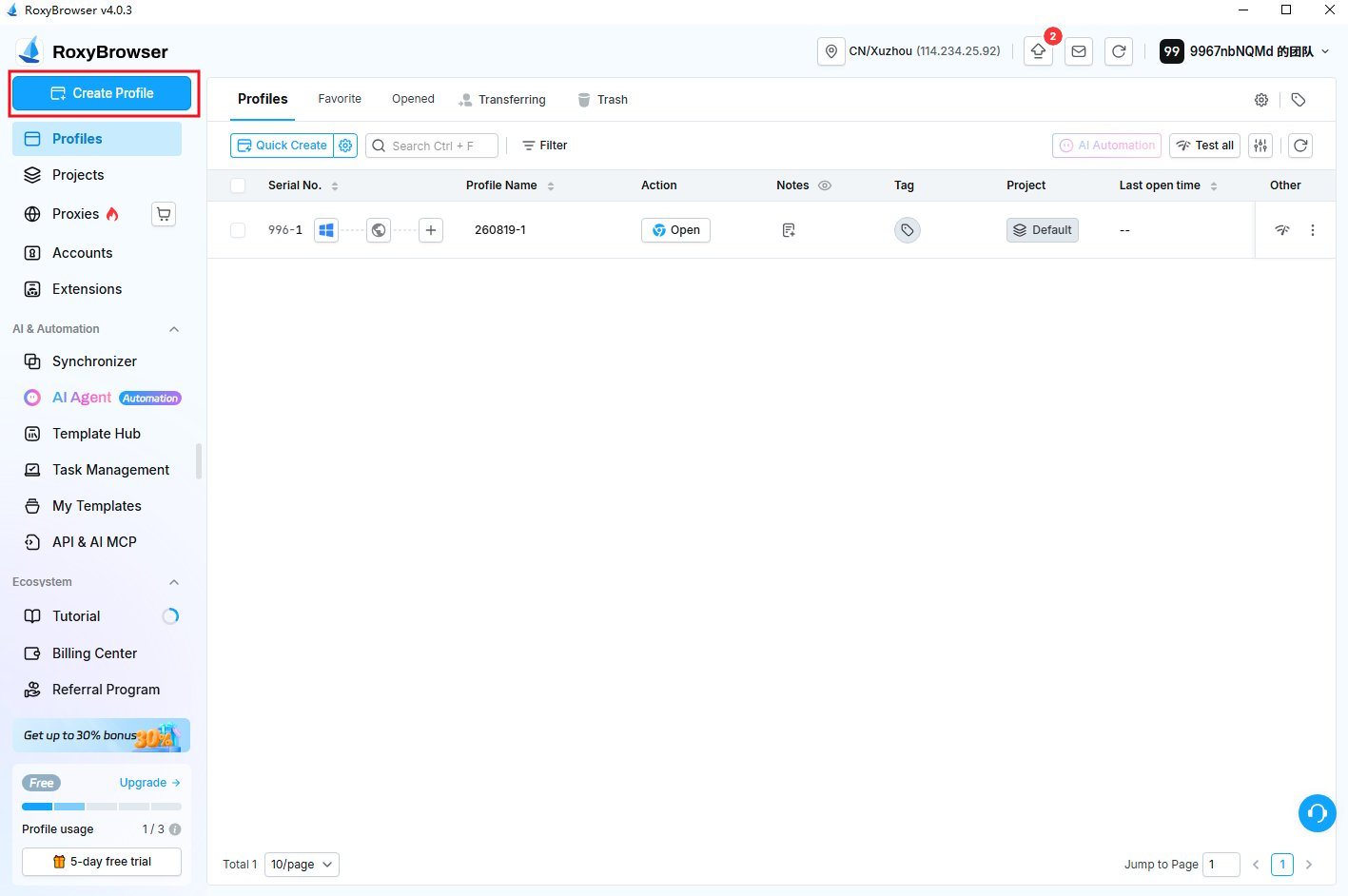
3. Then click the **Create Window** button to add a new profile.
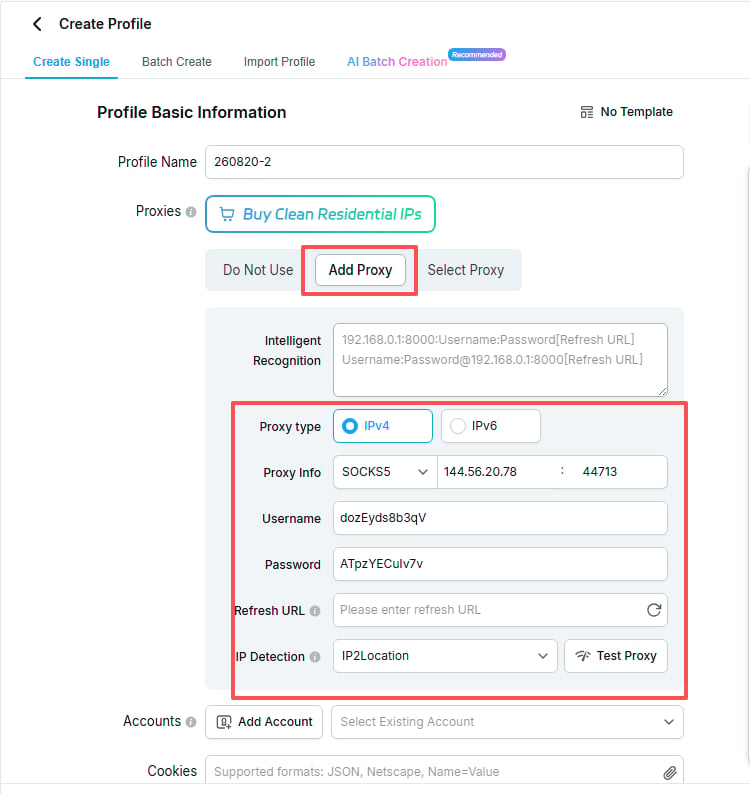
 4. Next, in the **Add Proxy IP** section, fill in all necessary information for the proxy connection.
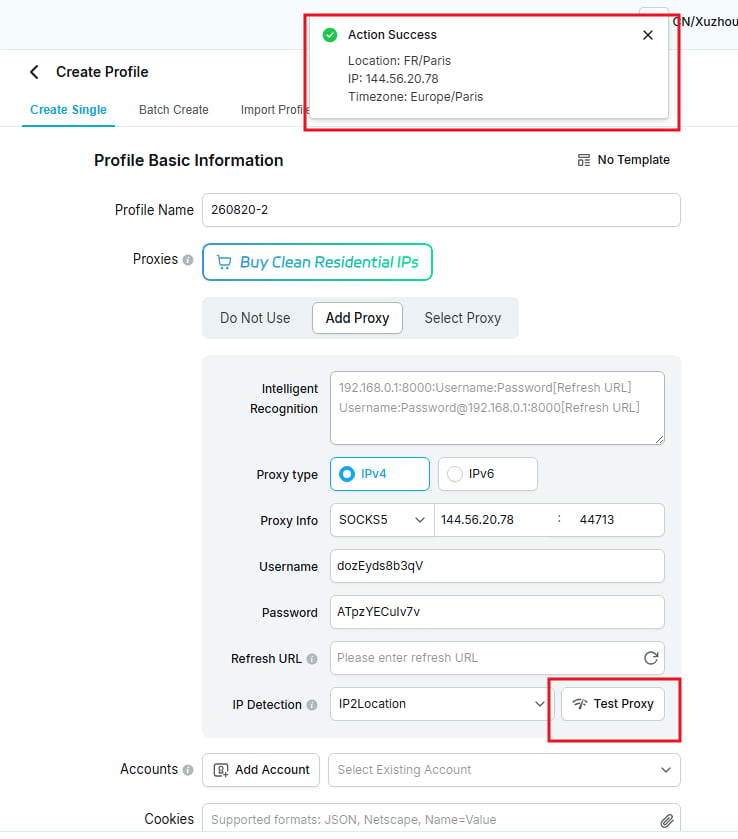
 5. After filling in all proxy connection details, you can click the **Test Proxy IP** button to check if the proxy is working properly.
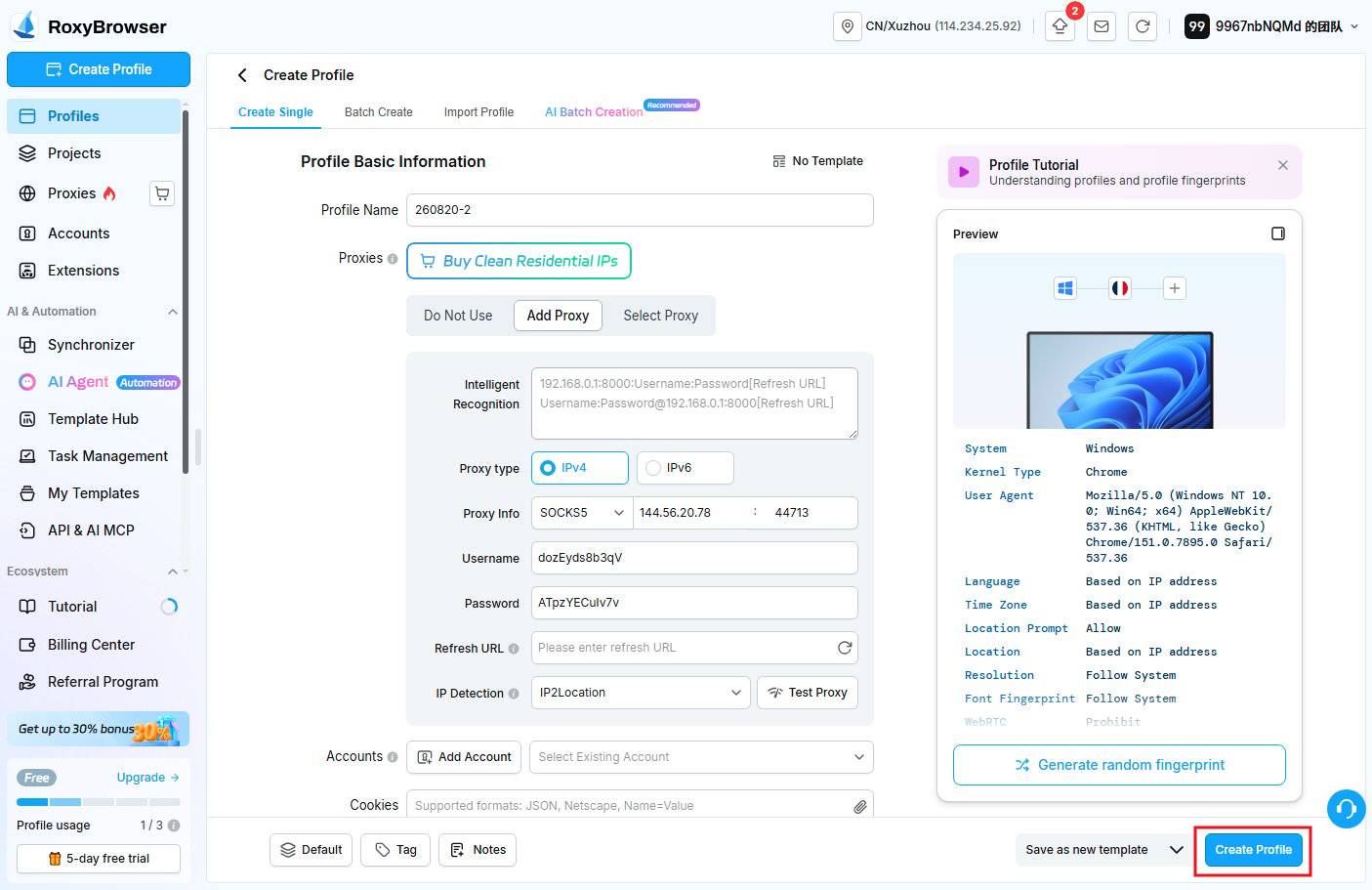
 6. The proxy configuration process is now complete. If you need to modify any other settings, make the necessary changes and click the **Create Window** button to save your profile.
 7. To launch the profile you created, simply click the **Open Window** button.
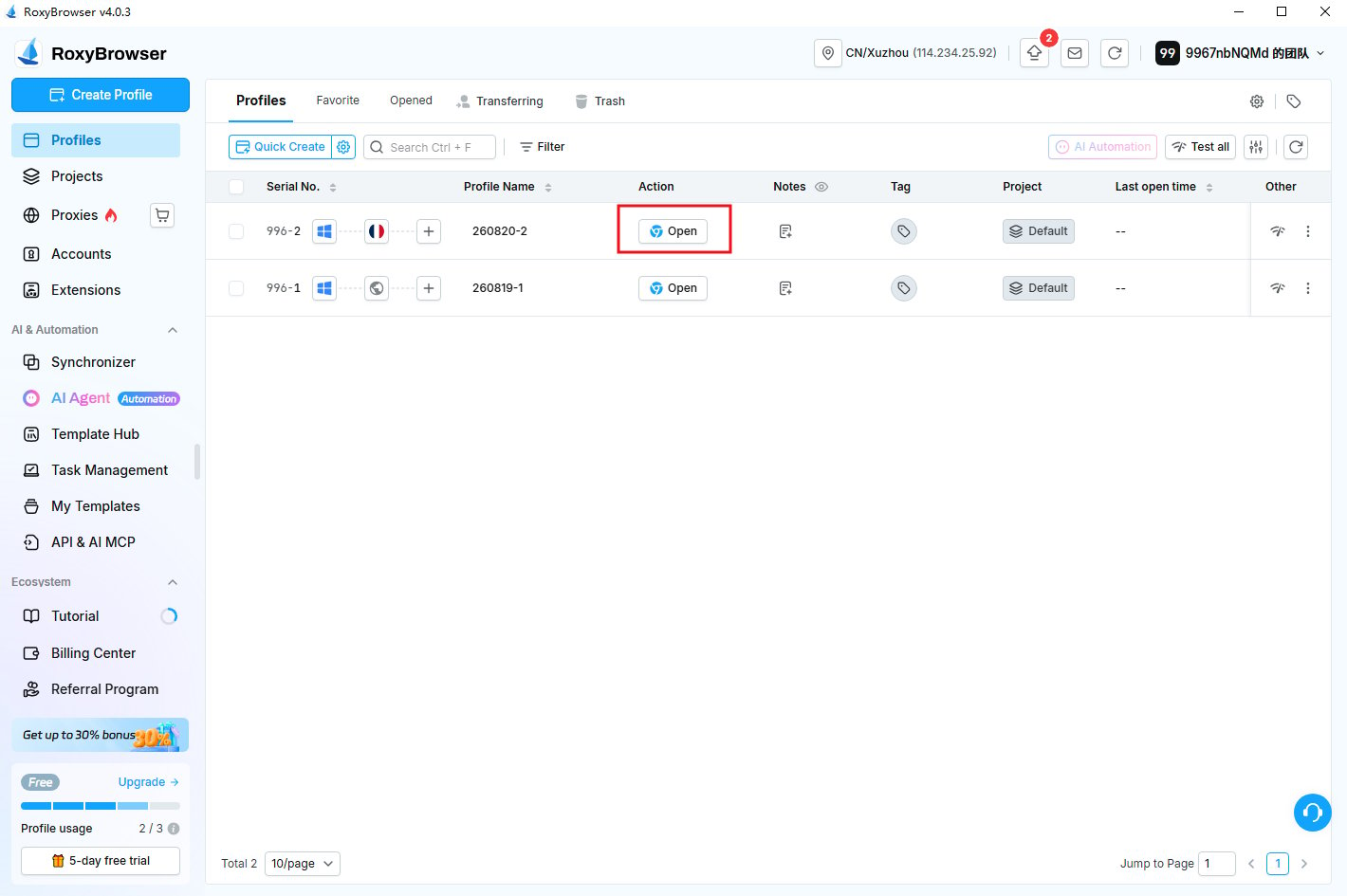 After completing the above steps, you can now use YumiProxy's proxy to access web pages in RoxyBrowser.
**If you have any questions or suggestions during use, please feel free to contact us. We are happy to hear your ideas and provide assistance.**
After completing the above steps, you can now use YumiProxy's proxy to access web pages in RoxyBrowser.
**If you have any questions or suggestions during use, please feel free to contact us. We are happy to hear your ideas and provide assistance.**