> ## Documentation Index
> Fetch the complete documentation index at: https://docs.yumiproxy.com/llms.txt
> Use this file to discover all available pages before exploring further.
# Hubstudio
**Before configuring a proxy in Hubstudio, please ensure your proxy settings are correct to guarantee smooth operation.**
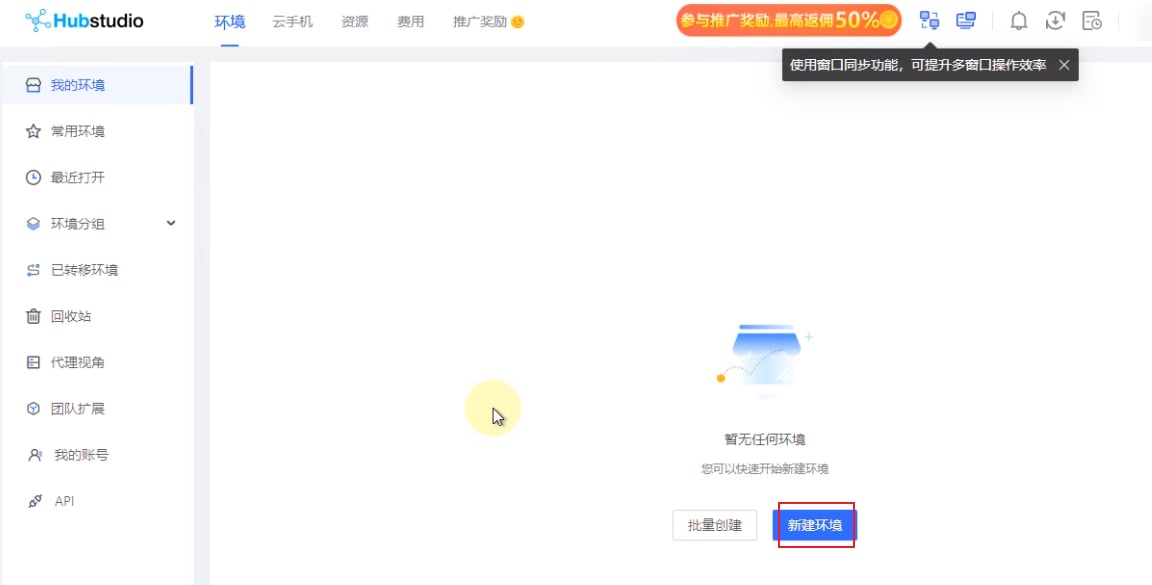
1. Open Hubstudio and click **New Profile**.
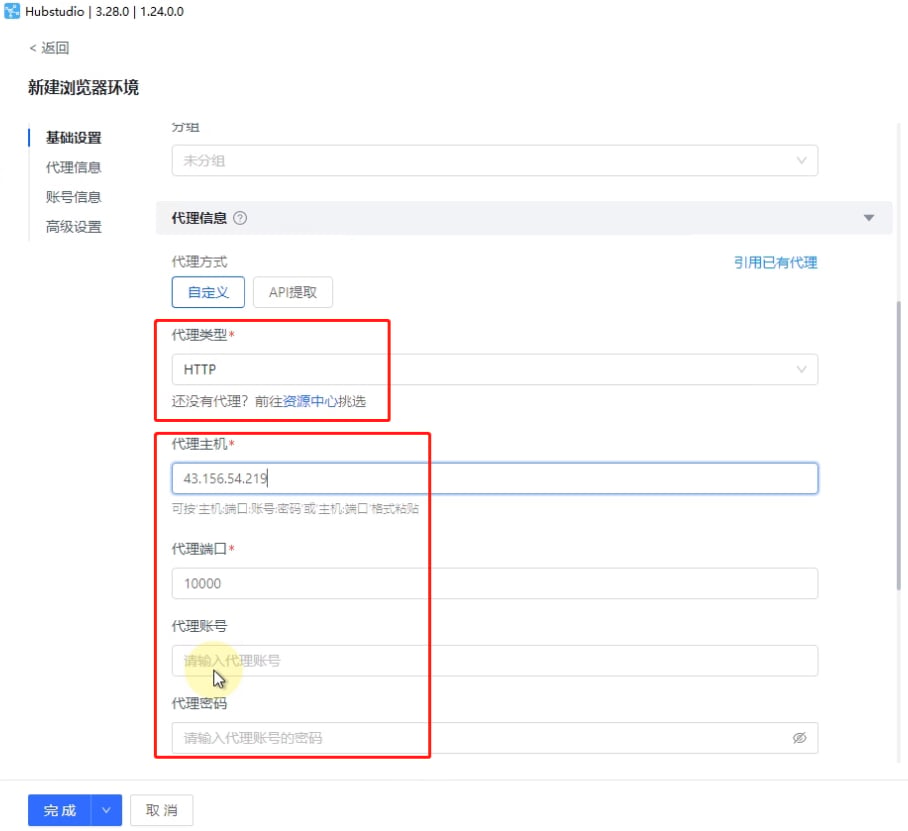
 2. Select the proxy type. For example, for API access, enter the host and port copied from YumiProxy. If you choose username/password authentication, fill in the proxy account and password as well.
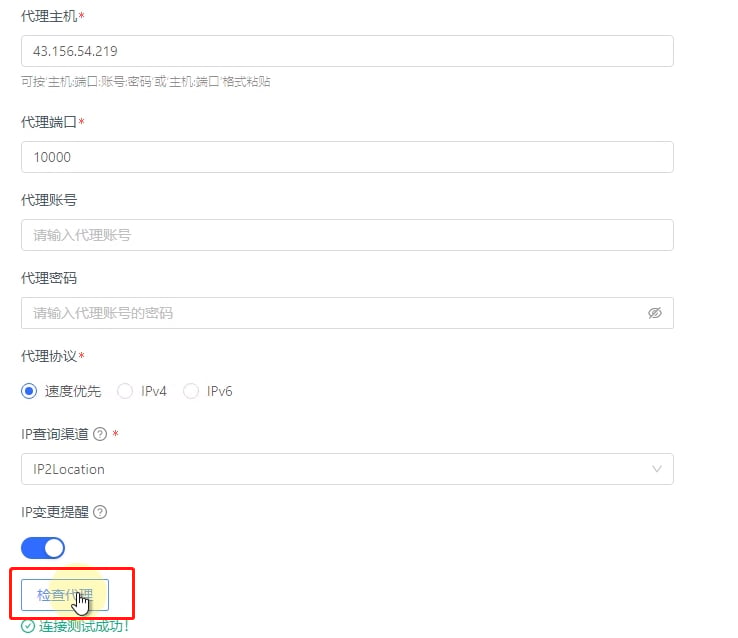
 3. Finally, click **Check Proxy**. Once the test succeeds, click **Finish** to start using the profile.
 After completing these steps, you can now use the YumiProxy service to access web pages in Hubstudio.
**If you have any questions or suggestions, please feel free to contact us. We are glad to hear your feedback and provide assistanc**e.
After completing these steps, you can now use the YumiProxy service to access web pages in Hubstudio.
**If you have any questions or suggestions, please feel free to contact us. We are glad to hear your feedback and provide assistanc**e.