> ## Documentation Index
> Fetch the complete documentation index at: https://docs.yumiproxy.com/llms.txt
> Use this file to discover all available pages before exploring further.
# Xlogin
**Before configuring XLogin with a proxy, please ensure that your proxy settings are correct to guarantee proper operation.**
1. Open XLogin Browser and click **\[New Browser Profile]**.
2. In the **\[Setting proxy server]** window, enable **\[Enable proxy server]**, select the proxy type, and enter the host and port obtained from YumiProxy. If you choose username/password authentication, fill in those credentials as well.
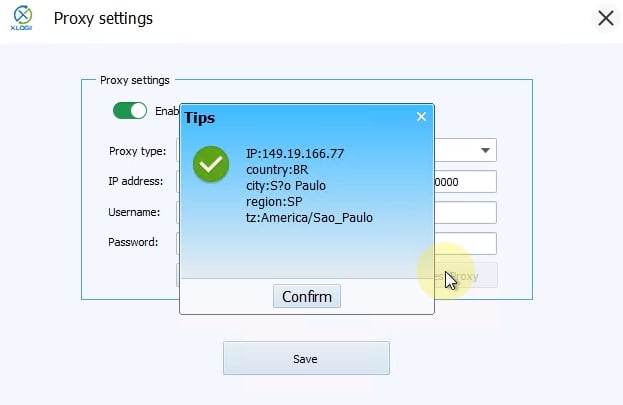 3. Click **\[Test Proxy]** to verify the connection, then click **\[Save]** upon success
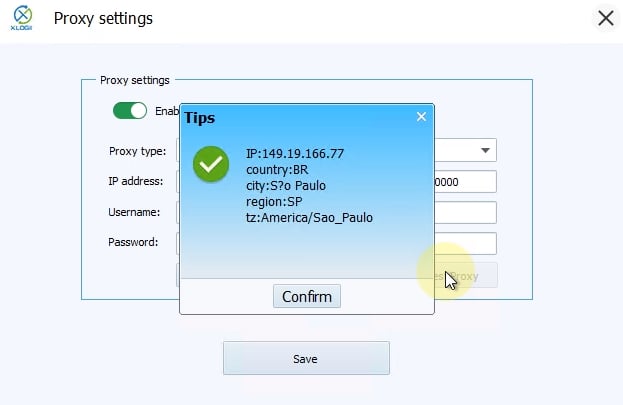 After completing these steps, you can now use the YumiProxy service to access web pages in XLogin.
**If you have any questions or suggestions, please feel free to contact us. We are happy to hear your feedback and provide assistance.**
After completing these steps, you can now use the YumiProxy service to access web pages in XLogin.
**If you have any questions or suggestions, please feel free to contact us. We are happy to hear your feedback and provide assistance.**