> ## Documentation Index
> Fetch the complete documentation index at: https://docs.yumiproxy.com/llms.txt
> Use this file to discover all available pages before exploring further.
# GoLogin
**To configure YumiProxy in GoLogin, simply follow these steps:**
1. First, download and install GoLogin on your device.
2. Open GoLogin and register or log in to your account.
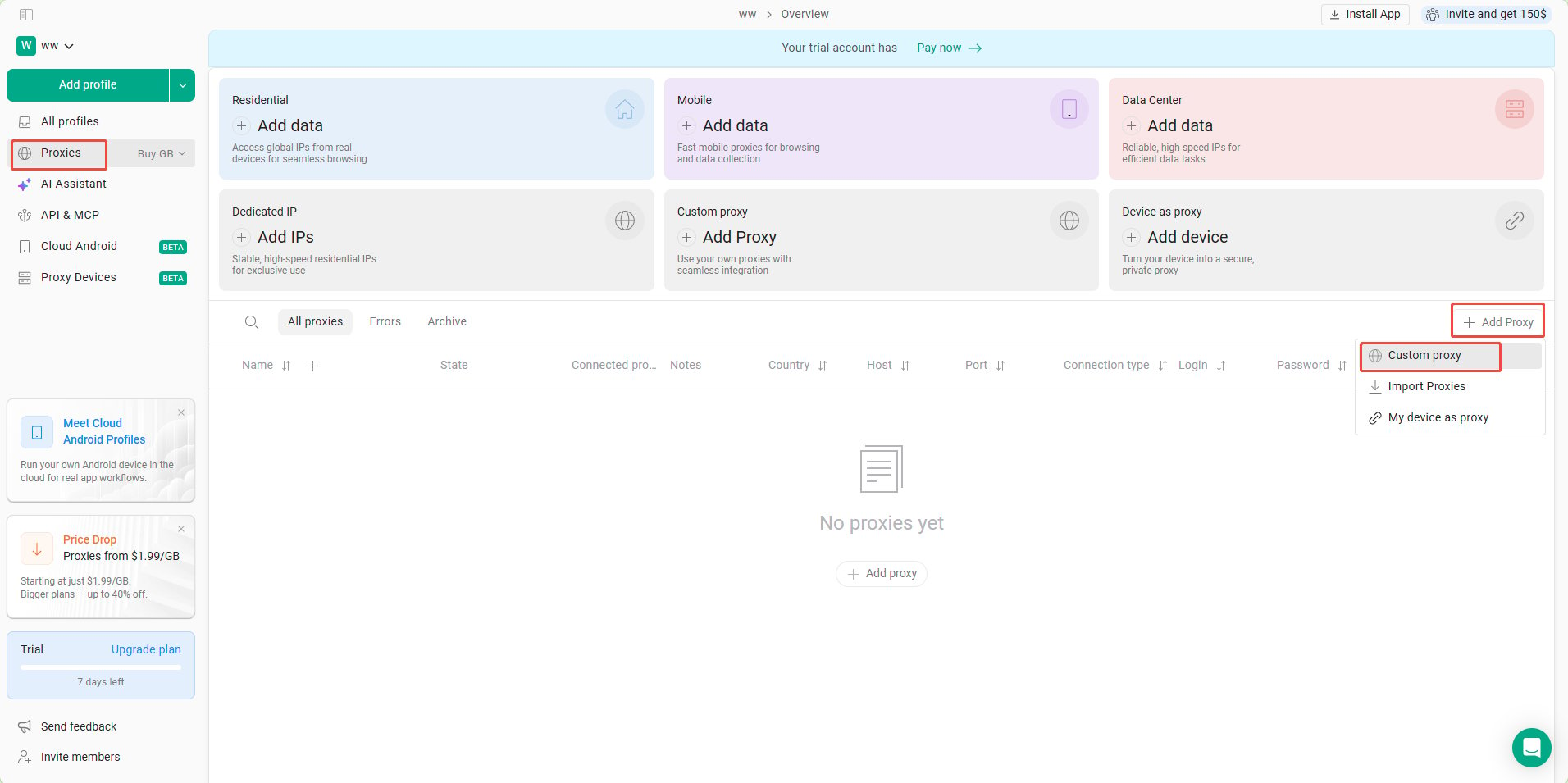
3. Click **Proxies** in the left sidebar, then click **Add Proxy** on the right to create a new proxy configuration.
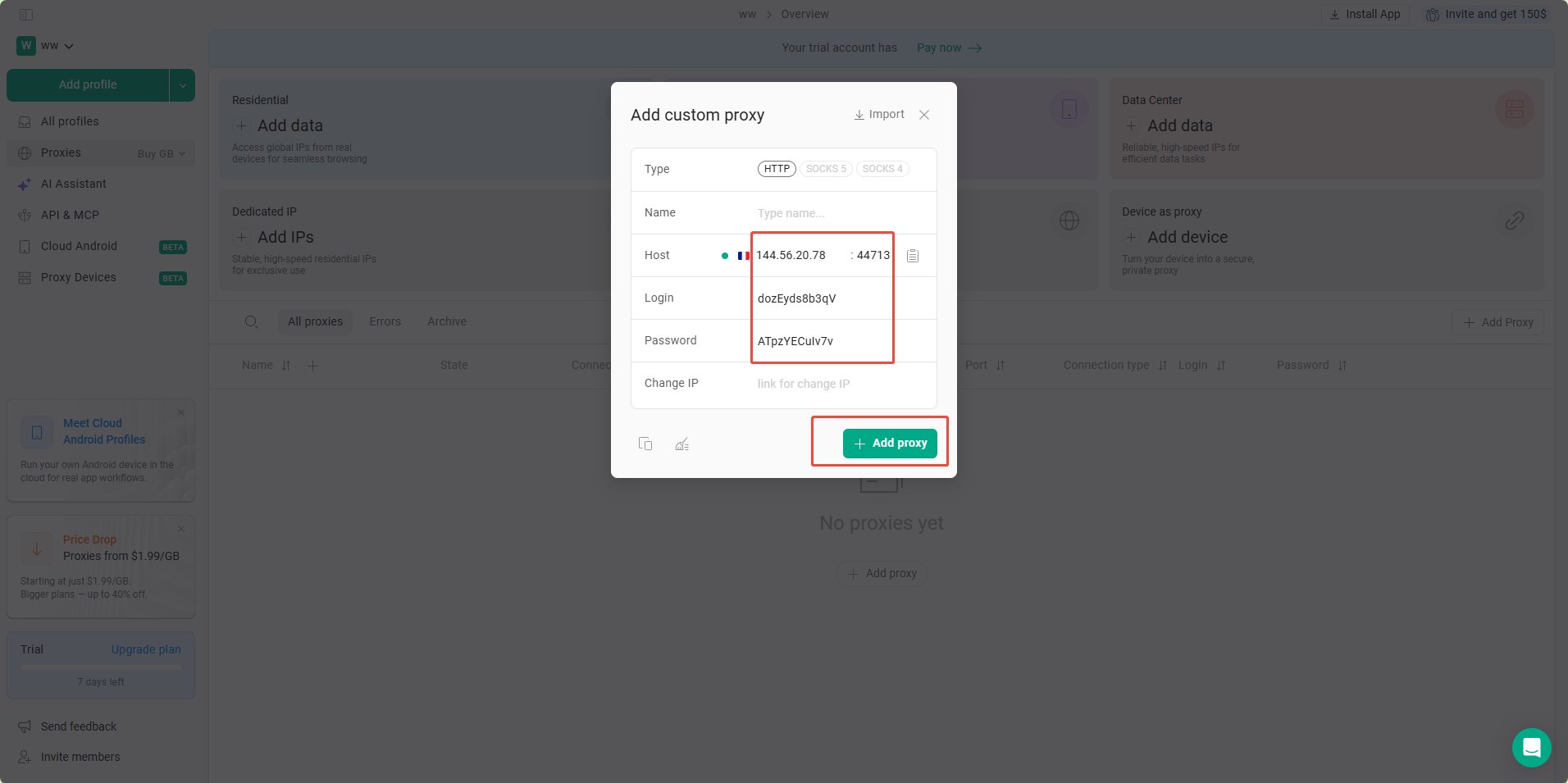
 4. Enter the proxy parameters obtained from YumiProxy. GoLogin will automatically validate the proxy—if the connection is successful, the corresponding country's flag will appear. Finally, click **Add Proxy** to save.
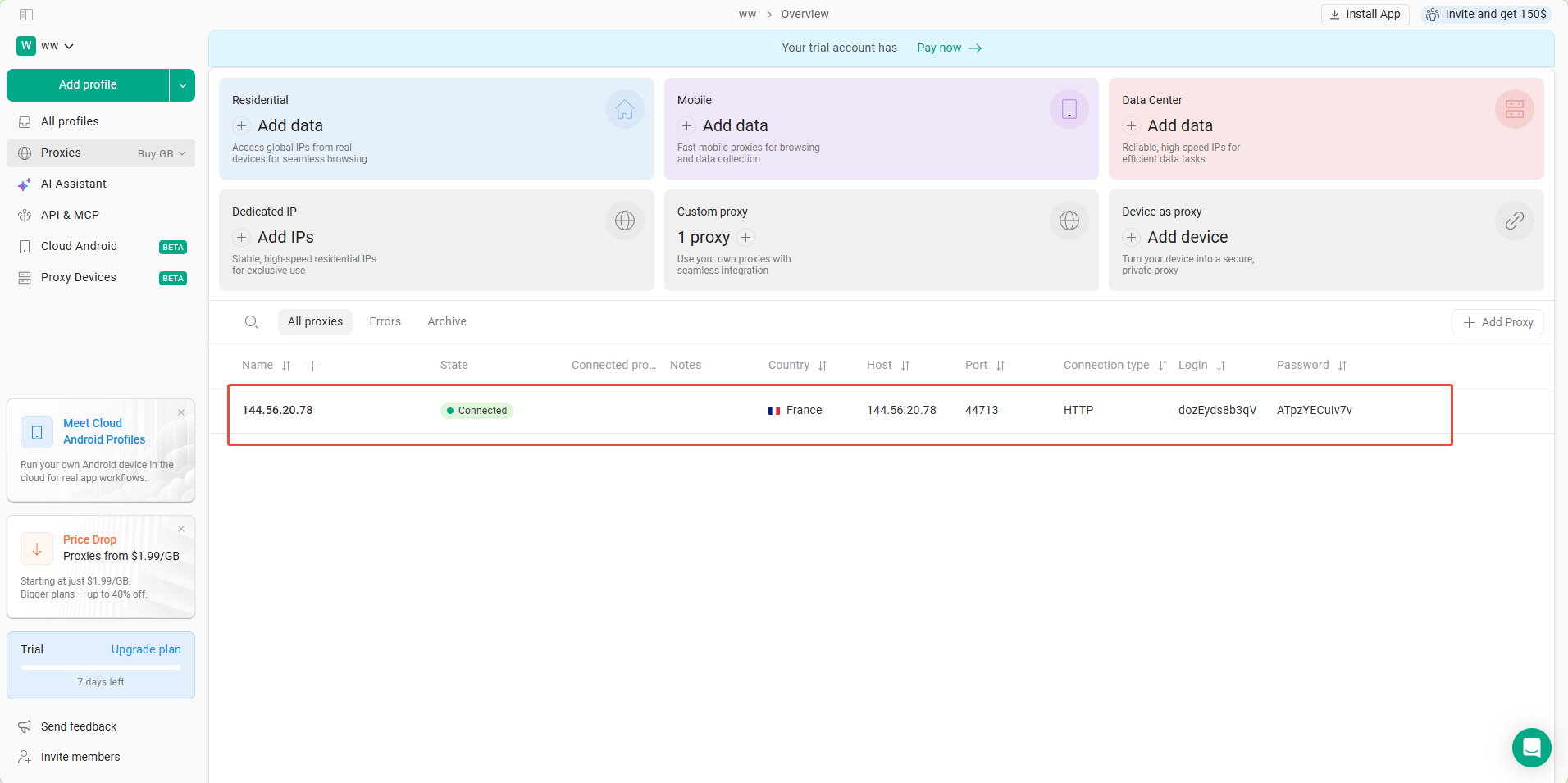
 5. Once the configuration is complete, you have successfully added YumiProxy to GoLogin.
 After completing the above steps, you can now use YumiProxy's proxy to access web pages in GoLogin.
**If you have any questions or suggestions during use, please feel free to contact us. We are happy to hear your feedback and provide assistance.**
After completing the above steps, you can now use YumiProxy's proxy to access web pages in GoLogin.
**If you have any questions or suggestions during use, please feel free to contact us. We are happy to hear your feedback and provide assistance.**