> ## Documentation Index
> Fetch the complete documentation index at: https://docs.yumiproxy.com/llms.txt
> Use this file to discover all available pages before exploring further.

# Incogniton 

**在 Incogniton 中配置代理，只需按照以下步骤操作：**

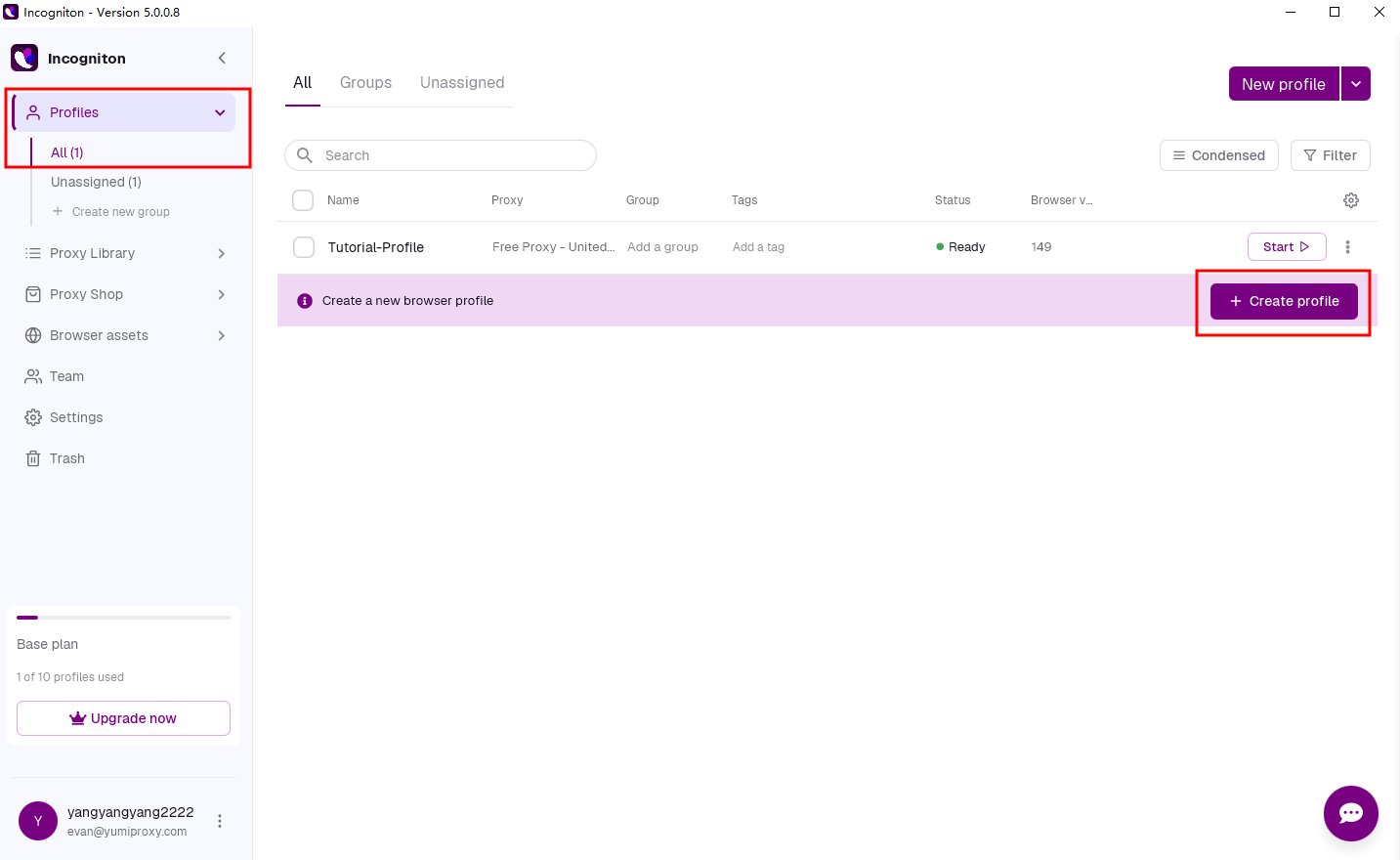
1. 打开 Incogniton 应用仪表板，点击 **“创建配置文件”** 按钮，进入配置文件创建页
   <Frame>
     <img src="https://mintcdn.com/yumiproxycom/_z14JbA38tMNhsK-/images/image-215.png?fit=max&auto=format&n=_z14JbA38tMNhsK-&q=85&s=08af65d9b995810fbc9223d70aad9b93" alt="Image" width="1433" height="880" data-path="images/image-215.png" />
   </Frame>
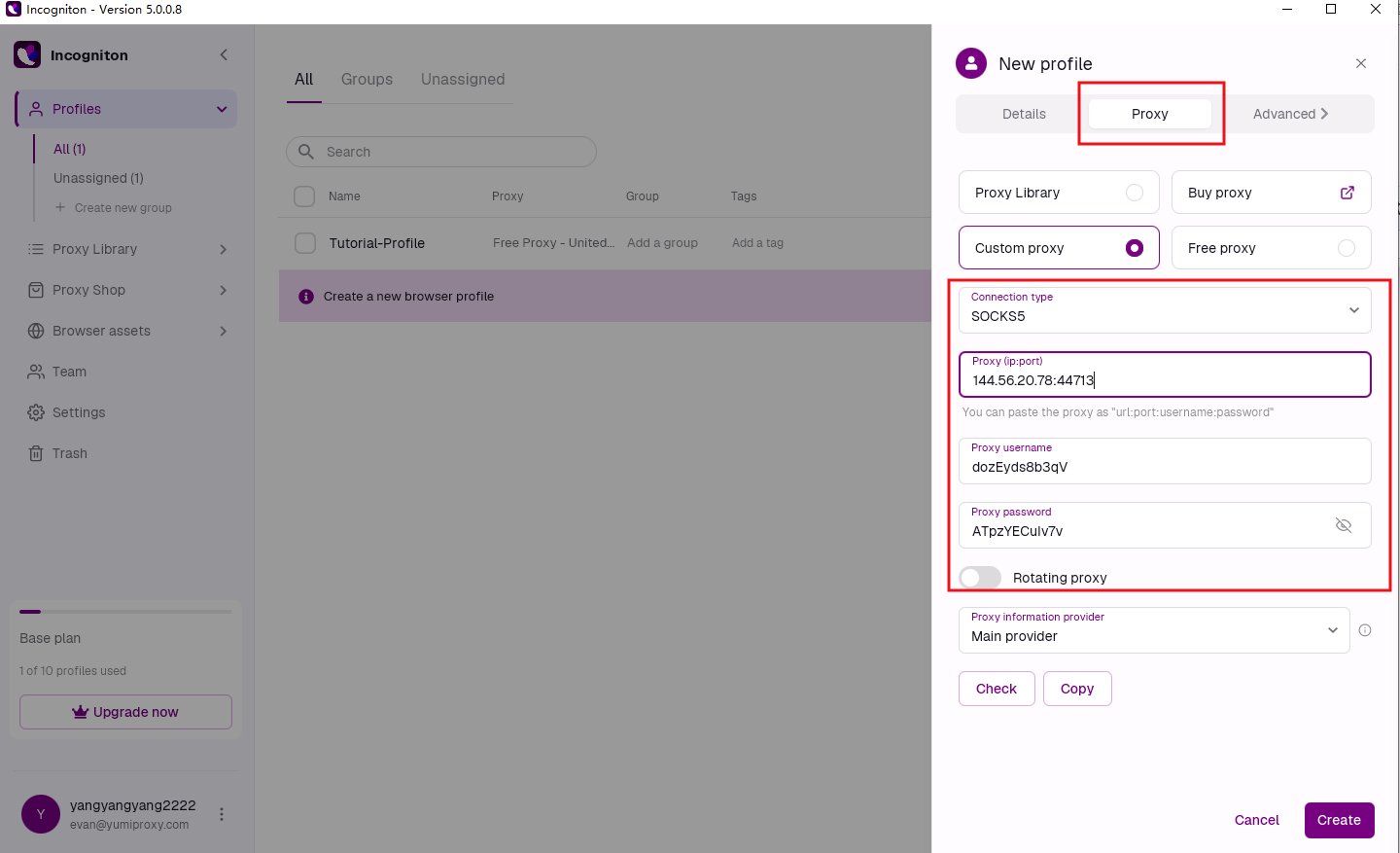
2. 打开 **“代理”** 选项卡，选择 **“自定义代理”**，然后填写代理用户名和代理密码。
   <Frame>
     <img src="https://mintcdn.com/yumiproxycom/_z14JbA38tMNhsK-/images/image-216.png?fit=max&auto=format&n=_z14JbA38tMNhsK-&q=85&s=110f27c76aa6b693dcd1e7c1103445fb" alt="Image" width="1440" height="877" data-path="images/image-216.png" />
   </Frame>
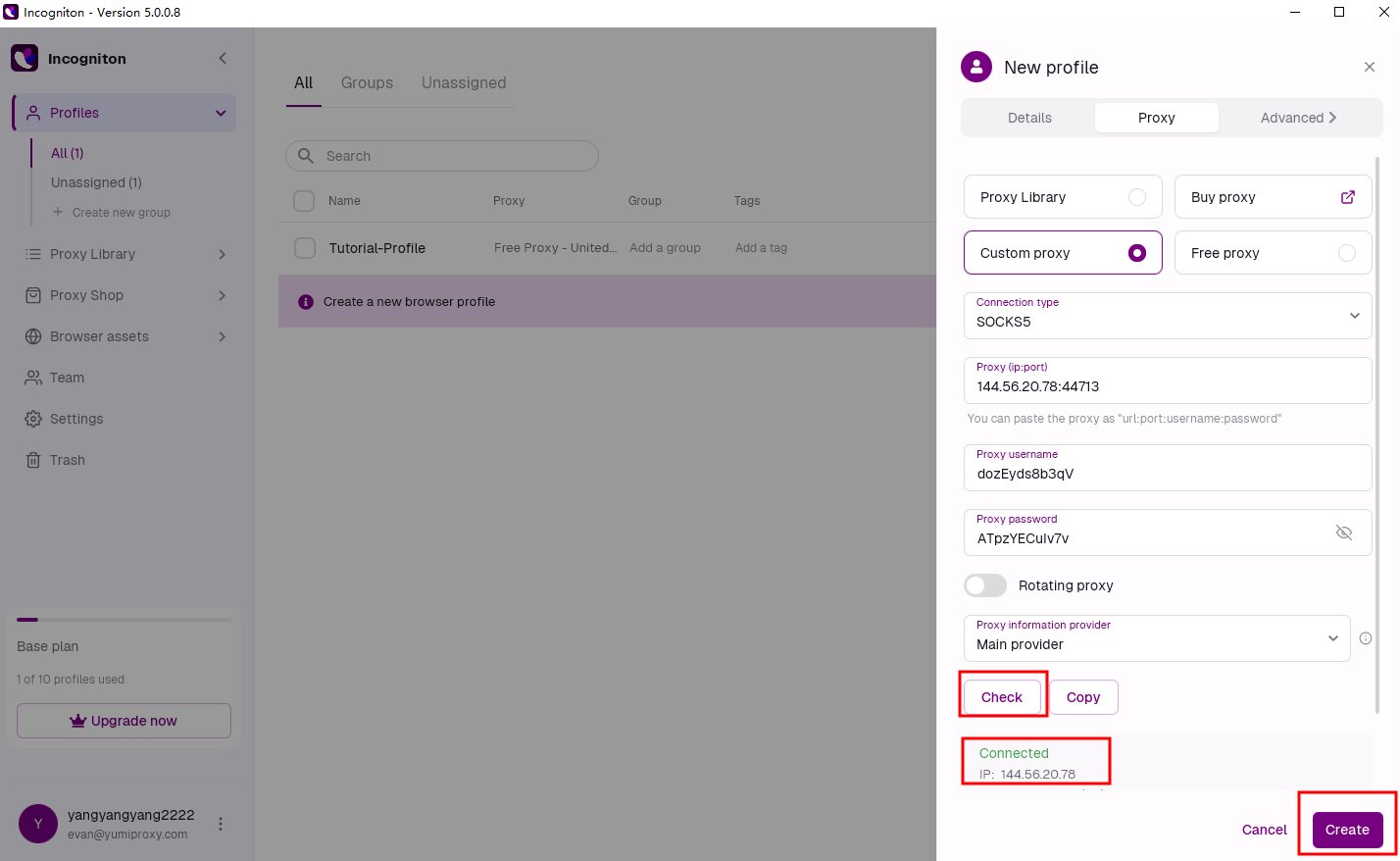
3. 输入代理信息后，点击 **“检查代理”** 按钮以验证连接是否正常。验证成功后，点击 **“确认”** 按钮保存。
   <Frame>
     <img src="https://mintcdn.com/yumiproxycom/_z14JbA38tMNhsK-/images/image-217.png?fit=max&auto=format&n=_z14JbA38tMNhsK-&q=85&s=04e1b86527b3b1a73bb7ef000bb6f6b2" alt="Image" width="1428" height="878" data-path="images/image-217.png" />
   </Frame>
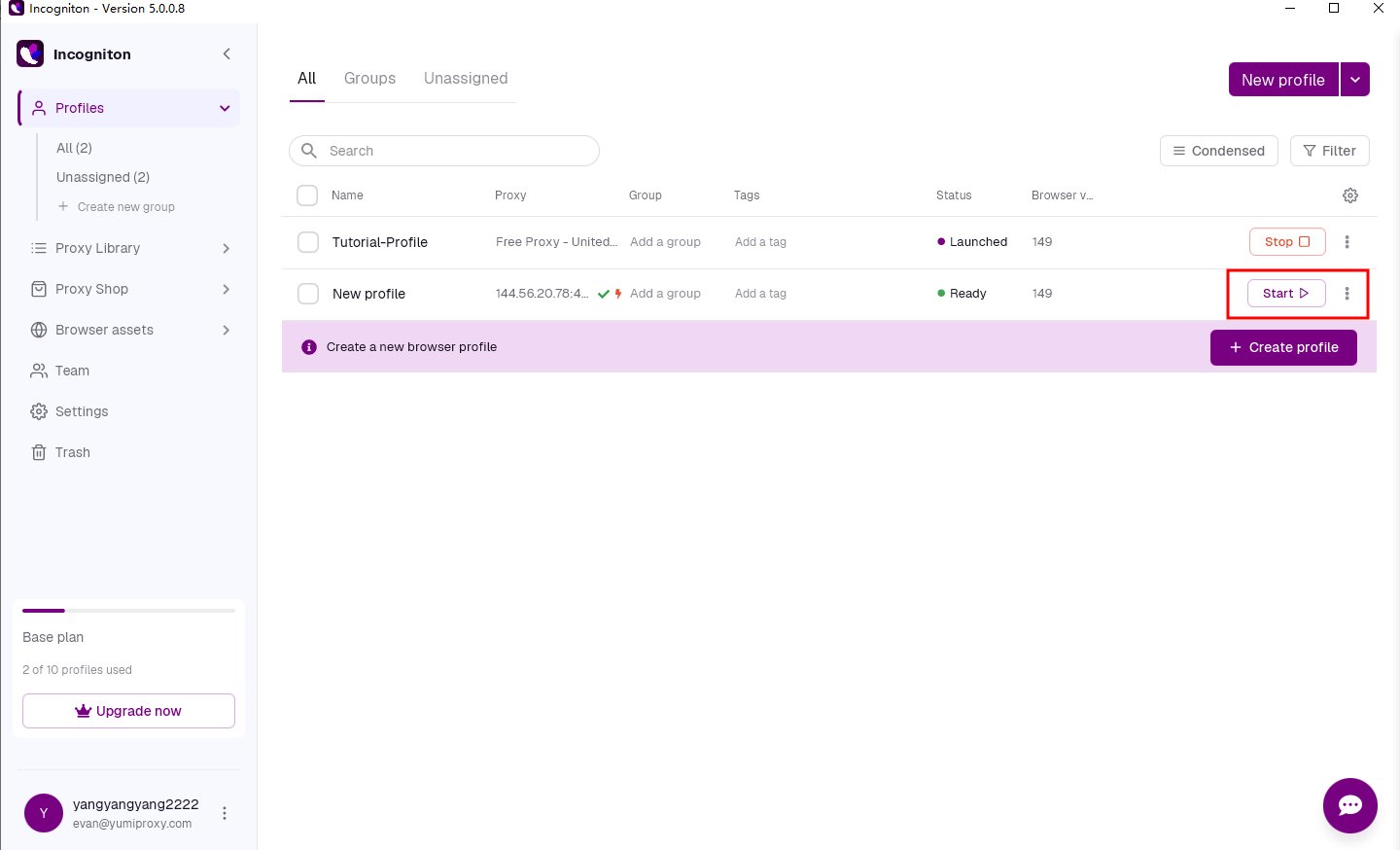
4. 点击该配置文件旁的 **“启动”** 按钮，即可打开一个带有独立数字指纹和代理设置的浏览器窗口。
   <Frame>
     <img src="https://mintcdn.com/yumiproxycom/_z14JbA38tMNhsK-/images/image-218.png?fit=max&auto=format&n=_z14JbA38tMNhsK-&q=85&s=be71b0c59368ccc9c28bc5e385939f7b" alt="Image" width="1440" height="874" data-path="images/image-218.png" />
   </Frame>

完成上述步骤后，您现在即可使用已配置的代理访问 Incogniton 中的网页。

**如果您在使用过程中有任何问题或建议，欢迎随时联系我们。我们很乐意倾听您的想法并为您提供帮助。**