

- Open the device Settings app and tap Wi-Fi to access the wireless network list.
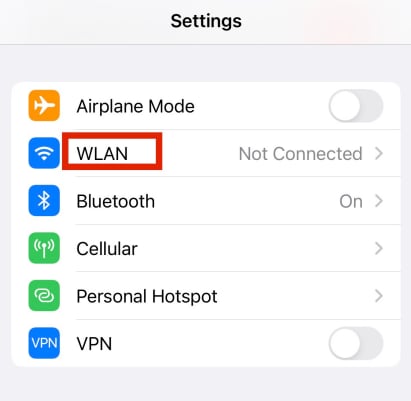
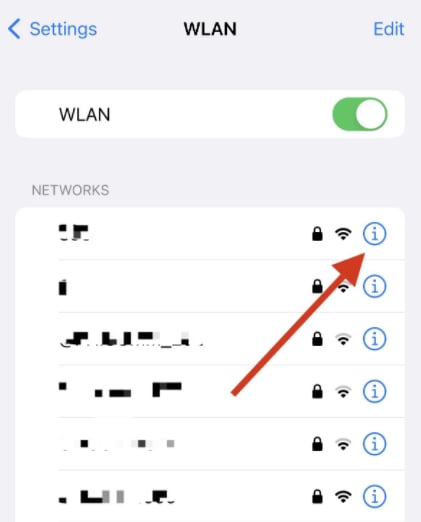
- Locate the Wi-Fi network you are currently connected to, and tap the Info icon (the letter “i” inside a blue circle) on its right side to enter the network details page.
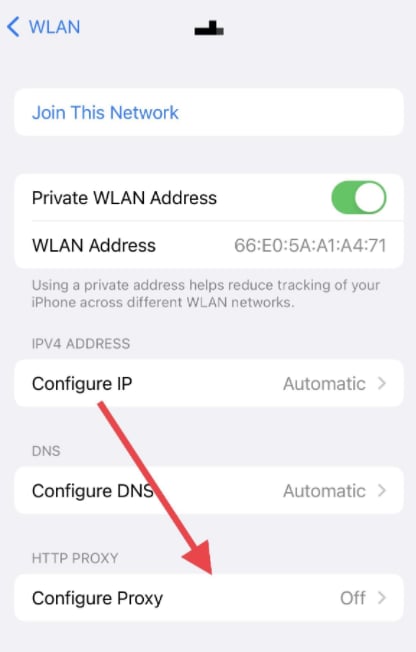
- On the network details page, scroll down to the HTTP Proxy section and tap Configure Proxy.
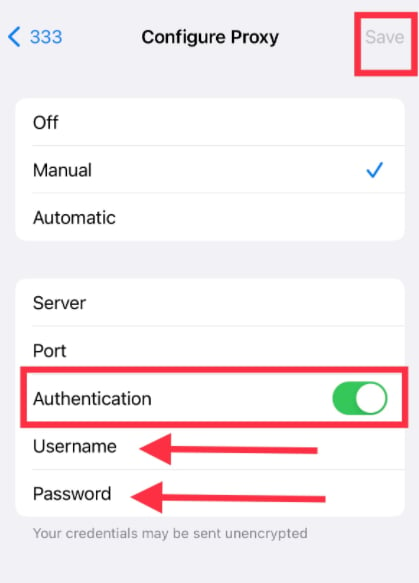
- On the Configure Proxy page, select Manual mode, then enter the server address and port number as provided by your proxy service provider.
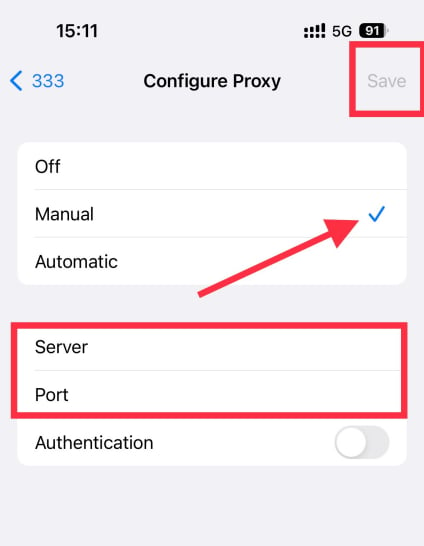
- Turn on the Authentication toggle, enter the username and password provided by your proxy service provider, then tap Save in the upper-right corner to store the configuration.
- Once configured, open your browser and access an IP detection website. If the displayed current IP address matches the configured proxy IP, the proxy setup is successful.
Operating Systems Proxy Integration Guide
iPhone
Before integrating a proxy into your iPhone, ensure that the proxy service has been correctly configured and is functioning properly.
The specific steps are as follows:
Was this page helpful?