

- Launch Microsoft Edge.
- Click the three-dot menu icon (···) on the right side of the address bar.
- From the drop-down menu, select Extensions.
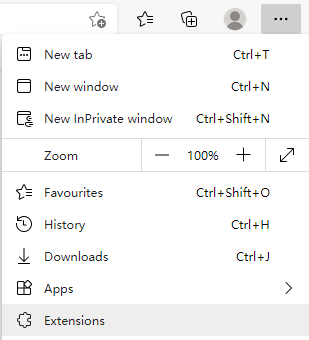
- Click Get extensions for Microsoft Edge to access the extensions store homepage.
- In the store, search for proxy extensions (such as SwitchyOmega or other commonly used ones) and add them to Edge.
- Once the installation is complete, click the extension icon on the right side of the Edge address bar to open the installed proxy extension.
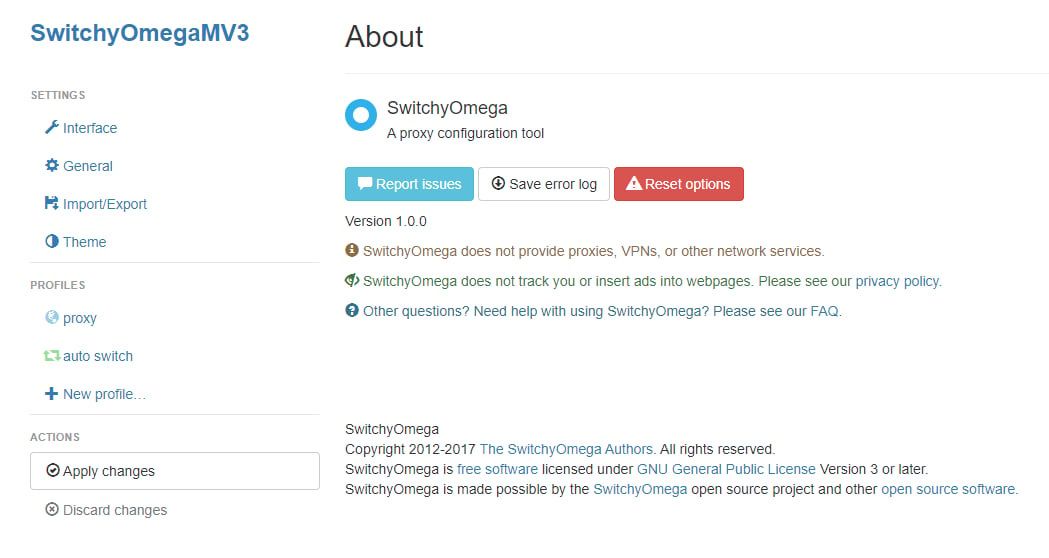
- In the proxy extension’s configuration interface, fill in the proxy protocol, proxy server address, port number, username, password, and other required information, then save your changes.
- After configuration, access an IP detection website through your browser. If the displayed current IP address matches the configured proxy IP, the proxy setup is successful.
Browsers & Extensions Proxy Integration Guide
Microsoft Edge
Before integrating a proxy into Edge, ensure that the proxy service has been correctly configured and is functioning properly.
The specific steps are as follows:
Was this page helpful?