

- Open VMLogin and enter your account and password (if you don’t have one, click Register New Account).
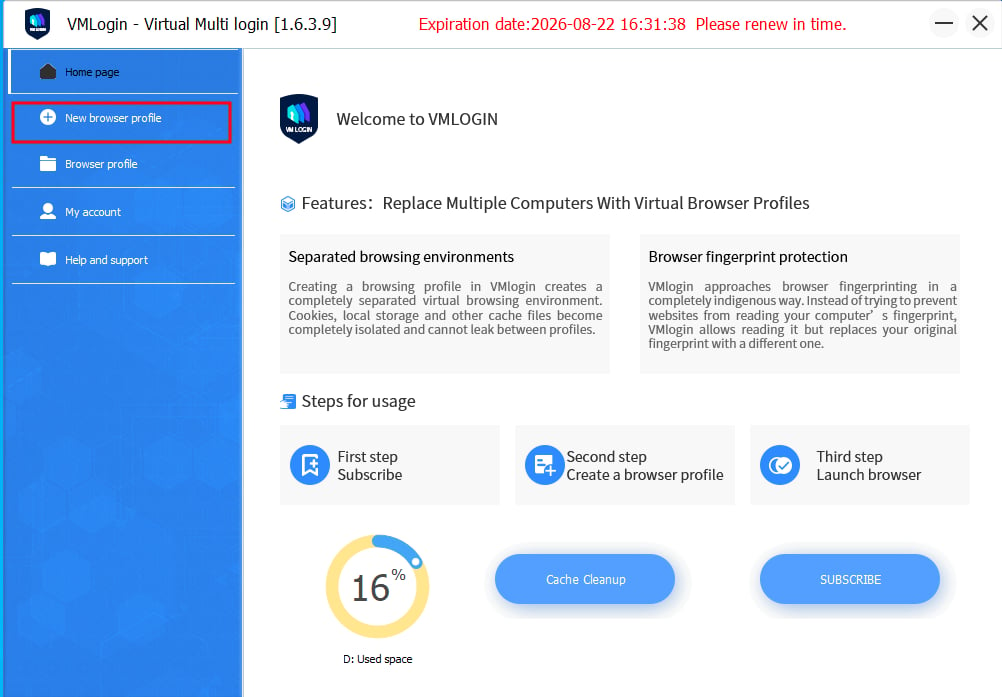
- After successful login, click New Browser Profile in the left navigation bar.
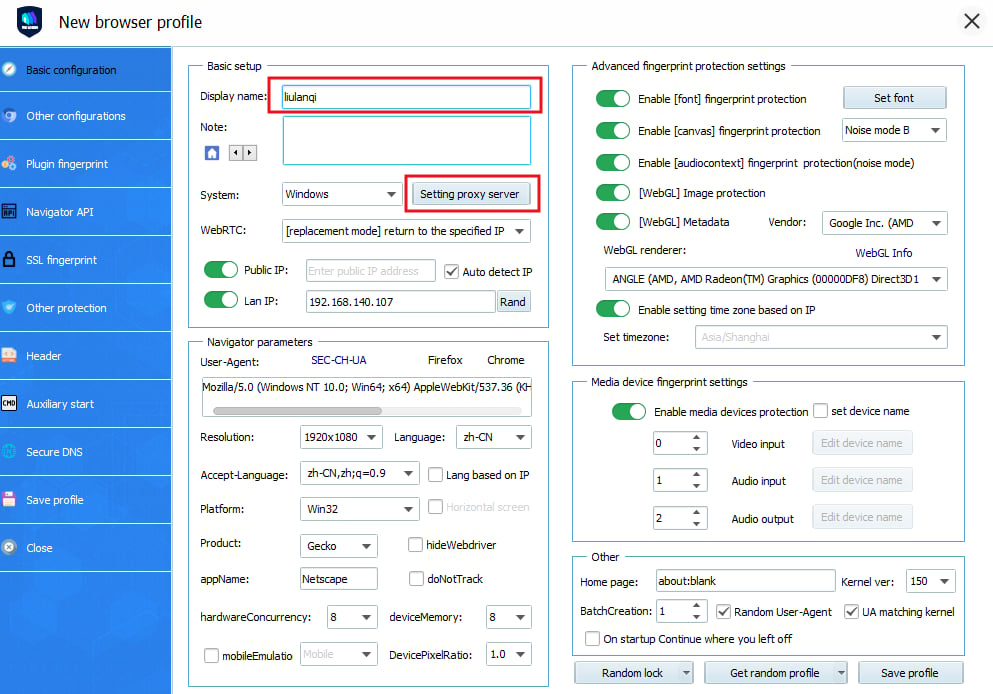
- Add your desired display name on the new browser profile page, and click Set Proxy Server.
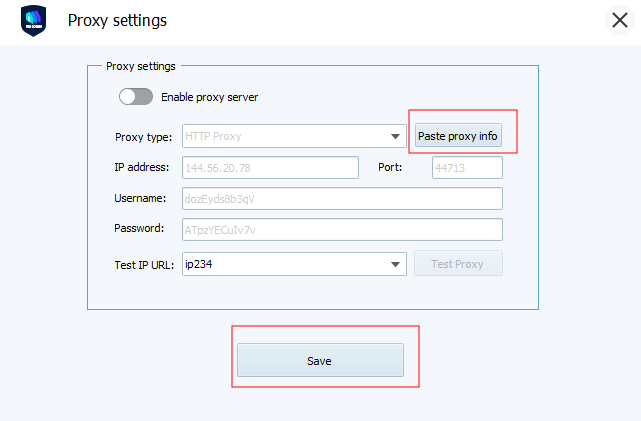
- Check “Enable proxy server”, fill in the IP address and port with the IP address you just obtained from YumiProxy, and click “Save”.
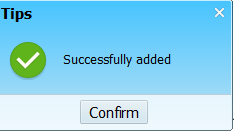
- After saving, a pop-up will appear indicating whether the configuration was successful.
Anti-Detect Browser Proxy Integration Guide
VMLogin
Before configuration, please obtain an IP from YumiProxy first and ensure the proxy settings are correct to guarantee normal operation.
Was this page helpful?