

- First, download and install BitBrowser on your device.
- Open it and register or log in to your account.
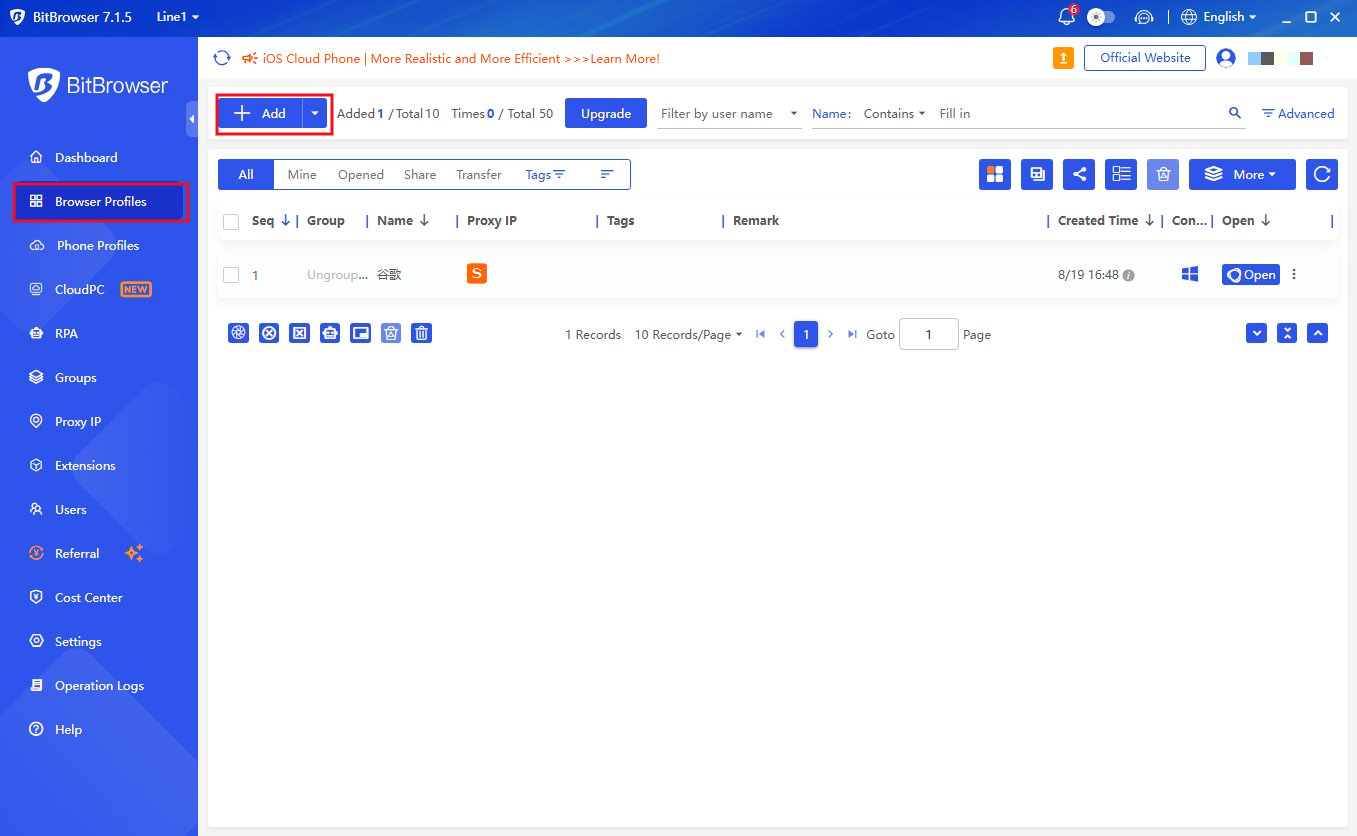
- Go to the Browser Profiles section and click the + Add button to add a new profile.
- In the Basic section, specify your profile name and any other information if needed.
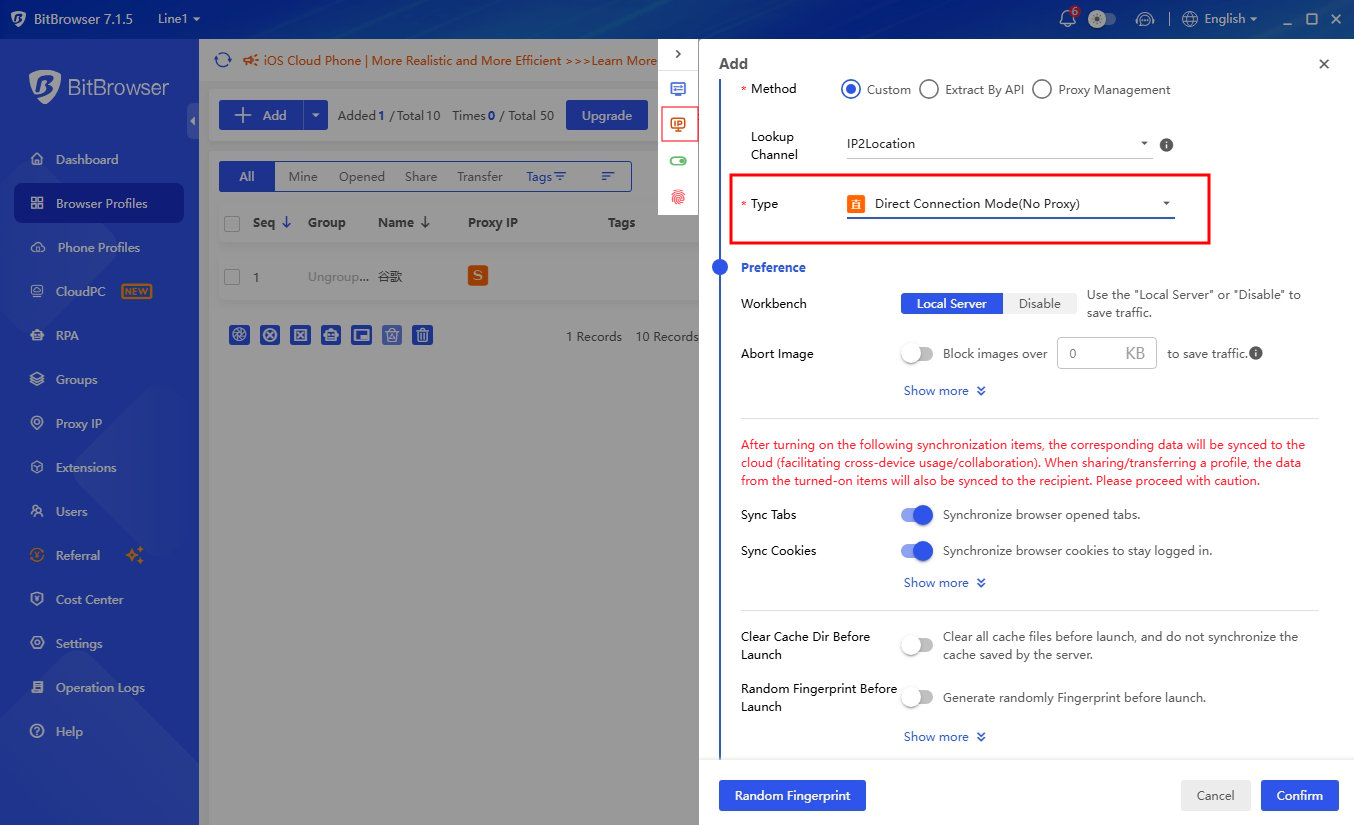
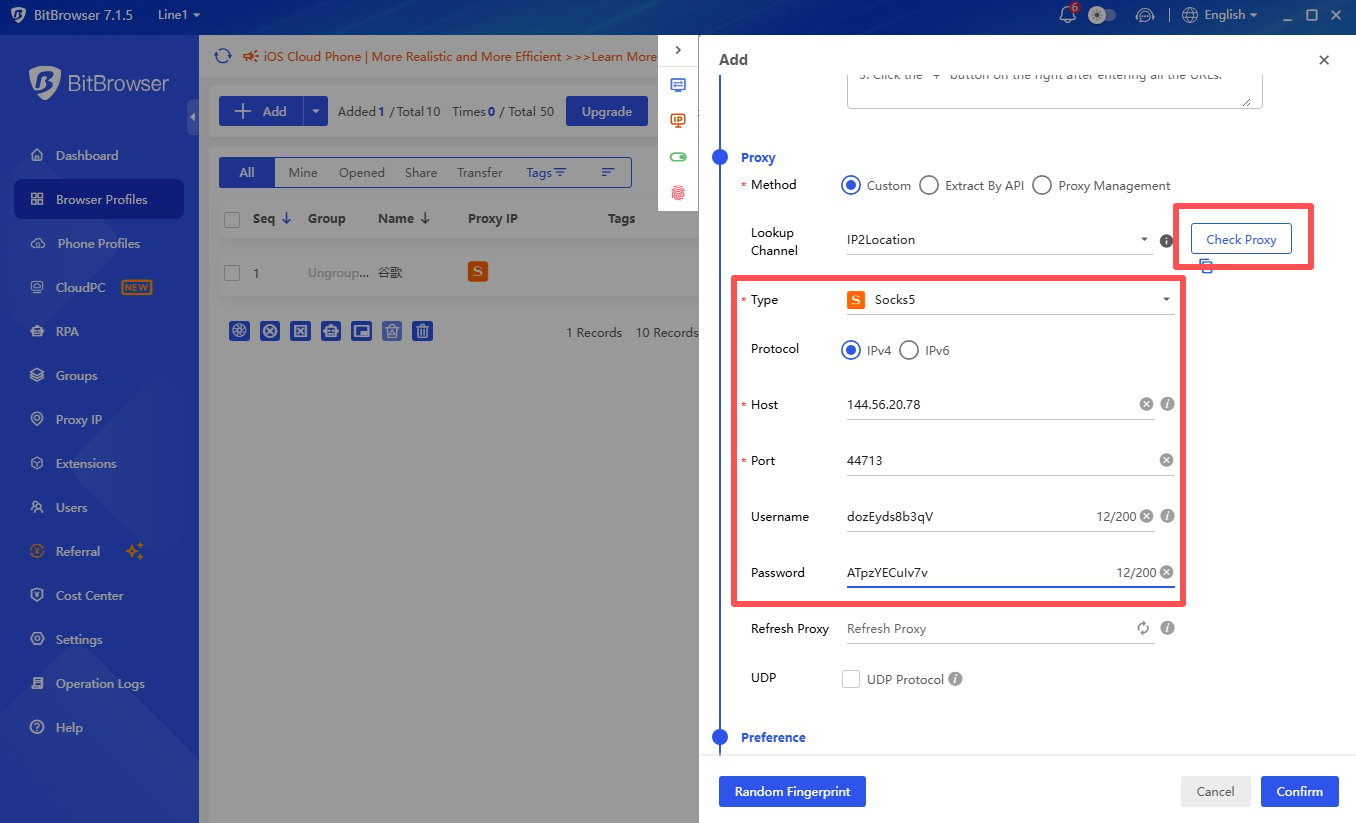
- Next, scroll down a bit. In the Proxy section, fill in all necessary information for the proxy connection, including username and password.
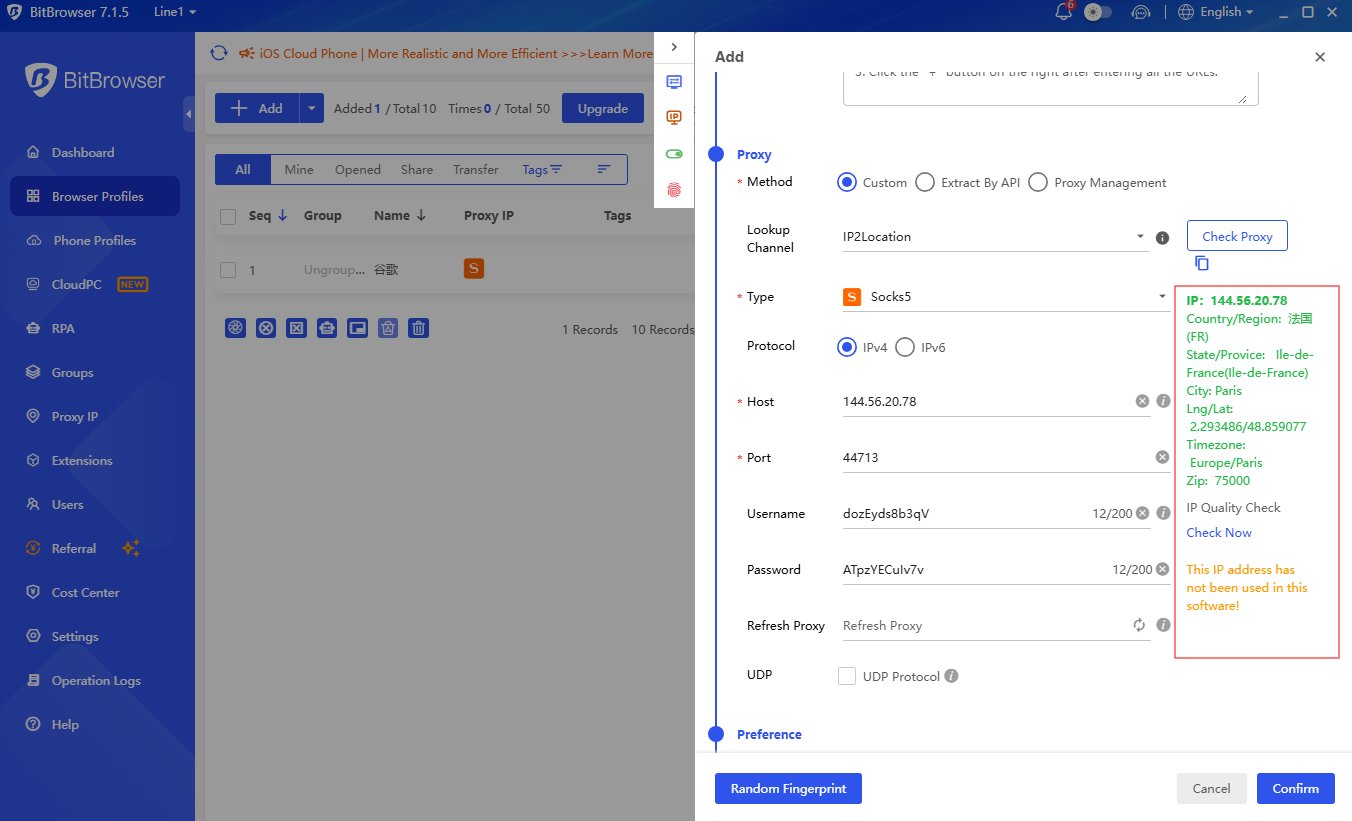
- After filling in all proxy connection details, you can click the Check Proxy button to verify if the proxy is working properly. As a lookup channel, we recommend using IP2Location.
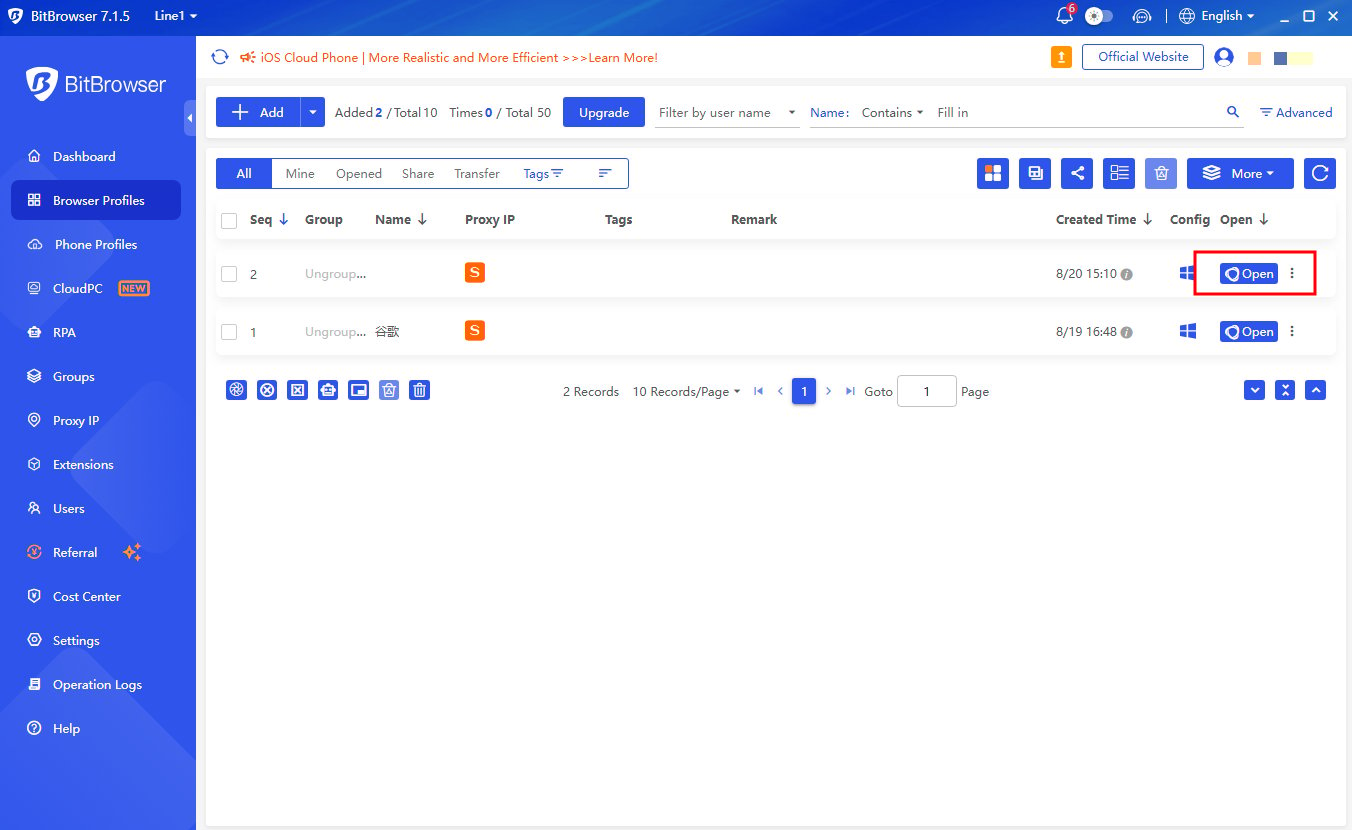
- To launch the profile you created, simply click the Open button.
Anti-Detect Browser Proxy Integration Guide
BitBrowser
To configure YumiProxy in BitBrowser, simply follow these steps:
Was this page helpful?