

- First, download and install GoLogin on your device.
- Open GoLogin and register or log in to your account.
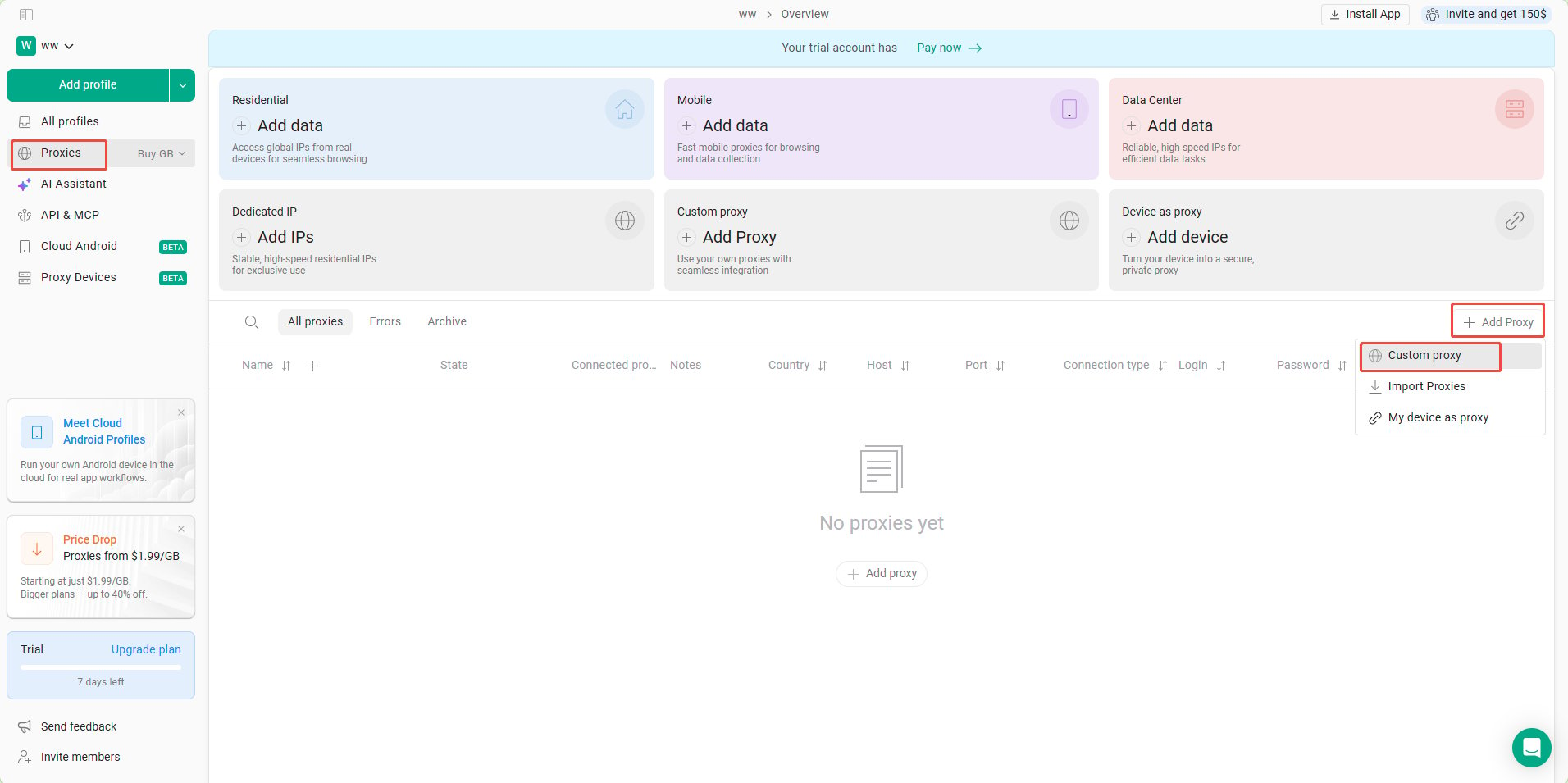
- Click Proxies in the left sidebar, then click Add Proxy on the right to create a new proxy configuration.
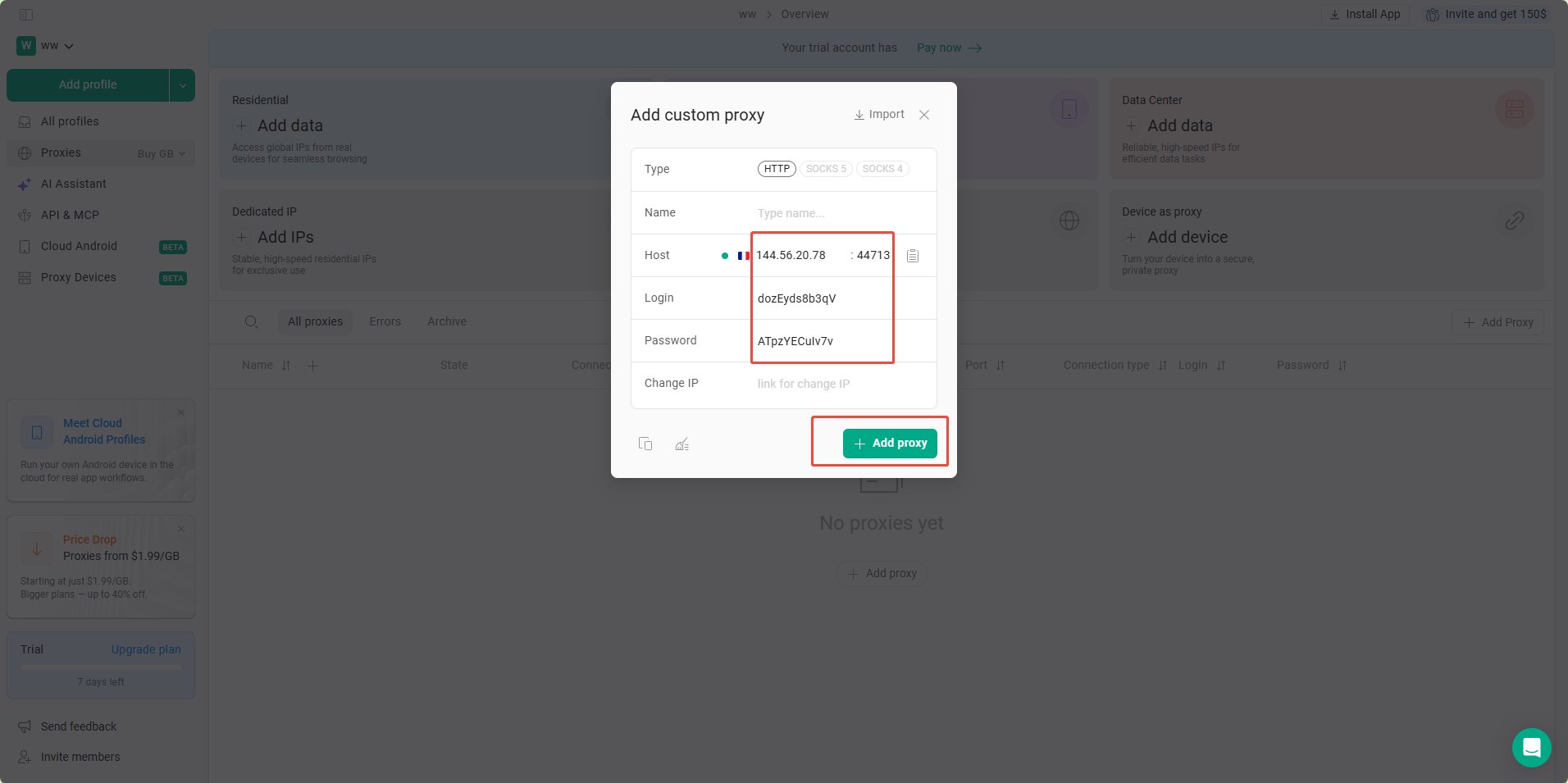
- Enter the proxy parameters obtained from YumiProxy. GoLogin will automatically validate the proxy—if the connection is successful, the corresponding country’s flag will appear. Finally, click Add Proxy to save.
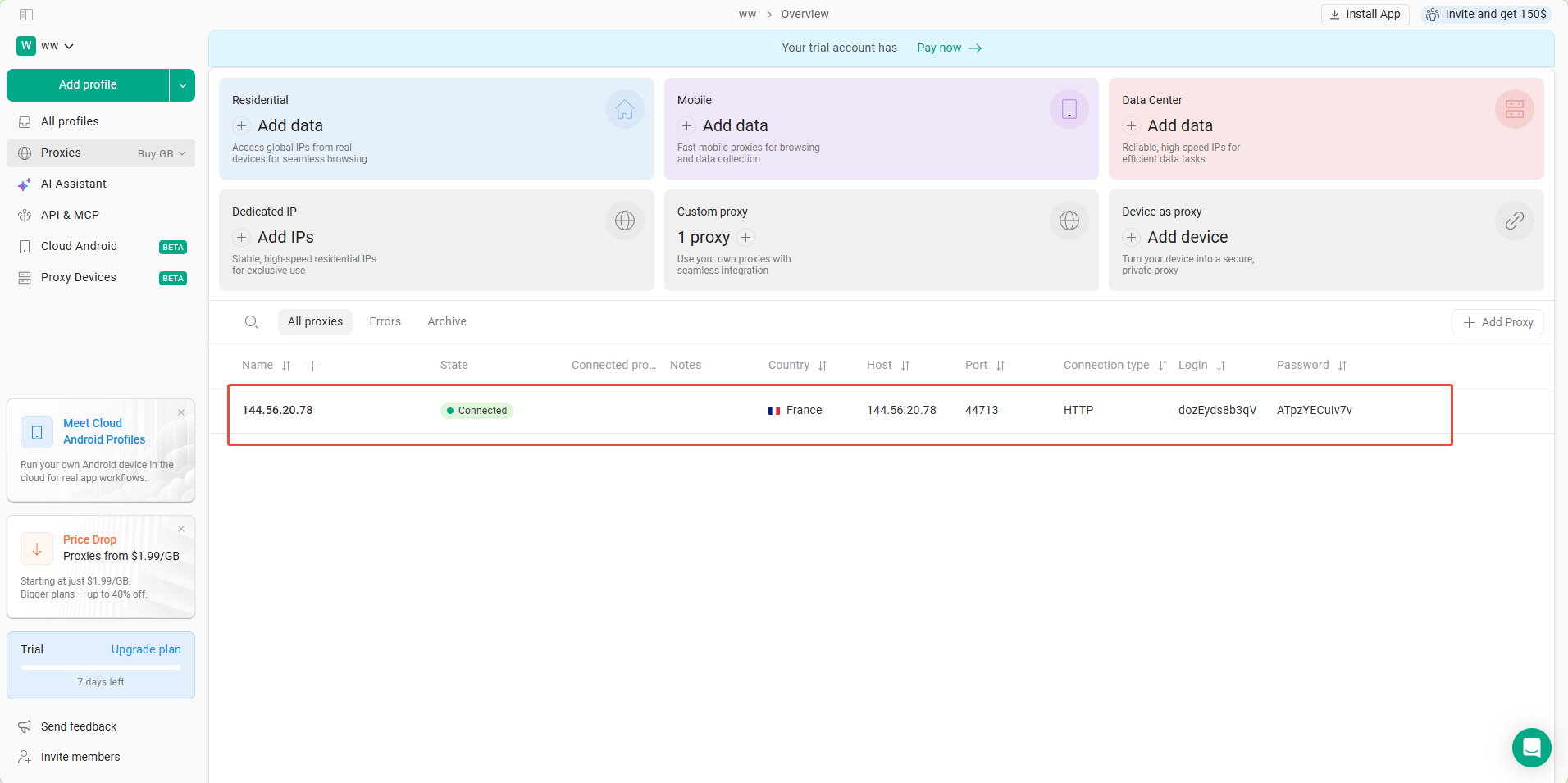
- Once the configuration is complete, you have successfully added YumiProxy to GoLogin.
Anti-Detect Browser Proxy Integration Guide
GoLogin
To configure YumiProxy in GoLogin, simply follow these steps:
Was this page helpful?